Payment Flow
This page describes how the platform selects a payment method when an order is created — from the initial API request through to the final result — and how to control this process with the shop settings.
All settings described here are managed in the Merchant Account: Shops → your shop → Settings → Payment attempts; the settings are configured per shop.
Key terms
-
Payment method — a specific payment configuration connected to your shop. It combines a provider, acquirer, instrument type, credentials, supported currencies, and regions. The
paymentSettingsfields in the Create Order request narrow down which payment method is used. -
Provider — the external service that processes the transaction. Once the platform selects a payment method and all payment data is collected — entered by the payer or passed in the request — the transaction is sent to the provider for processing.
-
Routing rules — configurable rules that route a payment to a specific payment method based on conditions (amount, currency, BIN, payer data, etc.). Managed on the Routing tab of the shop. In the Route to section of a rule you either select the target payment methods manually, or choose Route by success rate, and the platform selects the method with the highest success rate automatically (see Routing).
-
Cascading rules — rules that select the fallback payment method for an automatic retry after a failed attempt. Managed on the Cascading tab of the shop. See Step 5.
-
Payment page — the page shown to the payer for selecting a payment option and entering payment data. It lists the options matching the request; an option may correspond to a single payment method or cover several (see Step 3).
-
First attempt settings — a setting in the Merchant Account that controls how the payment method is selected for the first payment attempt. Three options are available: Use payment page, Use routing, and Use request parameters only. See First attempt settings.
-
Fallback to payment page — a sub-setting of Use routing. It controls what happens when routing does not find a payment method: when enabled, the payer is redirected to the payment page; when disabled, the order fails with an error. See Use routing.
Overview
Every order goes through the following steps:
- Step 1: Payment Settings — the merchant sends a request with an optional
paymentSettingsobject - Step 2: Method selection — the platform selects a payment method according to the First attempt settings
- Step 3: Payment Page — the payer selects a payment option and enters payment data
- Step 4: Antifraud (optional) — the transaction is checked and then sent to the provider
- Step 5: Retries and cascading (optional) — a failed attempt is retried automatically with an alternative method (cascading) or manually by the payer with the same method (Try Again)
Payment flow diagram
The diagram omits the alias resolution errors (1-03-04–1-03-06) — see Aliases.
Step 1: Payment Settings
The paymentSettings object in the Create Order request determines how precisely the payment method is identified. All fields are optional — the more fields provided, the more precise the selection.
Unique request
If the provided parameters uniquely identify a single payment method, the platform uses it directly — in every first attempt mode. Routing and method selection are not needed: the payer is taken directly to the data entry form of that method.
The parameters that help identify a payment method are: providerCode, acquirerCode, instrumentType, transferType, walletType, entryMode, dataEntryMode, and paymentSettingsAlias. All of them are optional: if your shop has only a few payment methods, one or two parameters can be enough to identify a single method. Use Retrieve Payment Methods to see all configured methods and decide which parameters to provide.
Some of these parameters only apply to a specific instrument type: transferType to bank_transfer, walletType to wallet, and entryMode to card (see Instrument Types for the available values). A parameter that applies to one instrument type is also filled in automatically when the shop has only one option configured — for example, a bank_transfer order without transferType uses the shop's only transfer type.
"paymentSettings": {
  "instrumentType": "card",
  "providerCode": "providerA",
  "acquirerCode": "providerA",
  "entryMode": "cnp"
}
Partial request
"paymentSettings": {
  "instrumentType": "card"
}
The platform finds all methods matching the provided criteria and the order currency. If multiple methods match, the final selection depends on the First attempt settings (see Step 2).
| What you provide | What happens |
|---|---|
instrumentType only | All methods of that type matching the currency are considered. If exactly one matches, it is selected; otherwise the selection follows the First attempt settings |
instrumentType + providerCode | Narrows to payment methods matching this provider, currency, and instrument type. If one acquirer exists, it is selected automatically; with several acquirers the selection stays ambiguous and follows the First attempt settings |
providerCode + acquirerCode (no instrumentType) | The platform resolves instrumentType from the providerCode and acquirerCode combination. If the combination identifies a single method, it is selected; otherwise the selection follows the First attempt settings |
paymentSettingsAlias | Selects the exact pre-configured method tied to the alias (see Aliases) |
If a method has an alias, passing paymentSettingsAlias alone is the most reliable way to direct the payment to that exact method.
No paymentSettings
{
  "shopId": 115,
  "order": {
    "orderNumber": "test01",
    "cost": { "amount": "10.00", "currency": "EUR" }
  }
}
The platform considers all payment methods configured for your shop that support the requested currency. The currency itself can make the selection unique: when exactly one configured method supports the order currency, that method is selected directly even without any paymentSettings in the request.
Order creation fails immediately with HTTP 412 (There are no active payment settings that matches requested parameters) only when the request explicitly contradicts the shop's configuration: none of the shop's methods matches the provided parameters and currency — for example, instrumentType: "card" while the shop has only bank-transfer methods. This happens regardless of the first attempt mode; the order is recorded with status code 1-03-01 (see Status Codes). A request without paymentSettings does not cause this error by itself: as long as at least one method supports the order currency, the selection continues according to the First attempt settings.
Step 2: Method selection
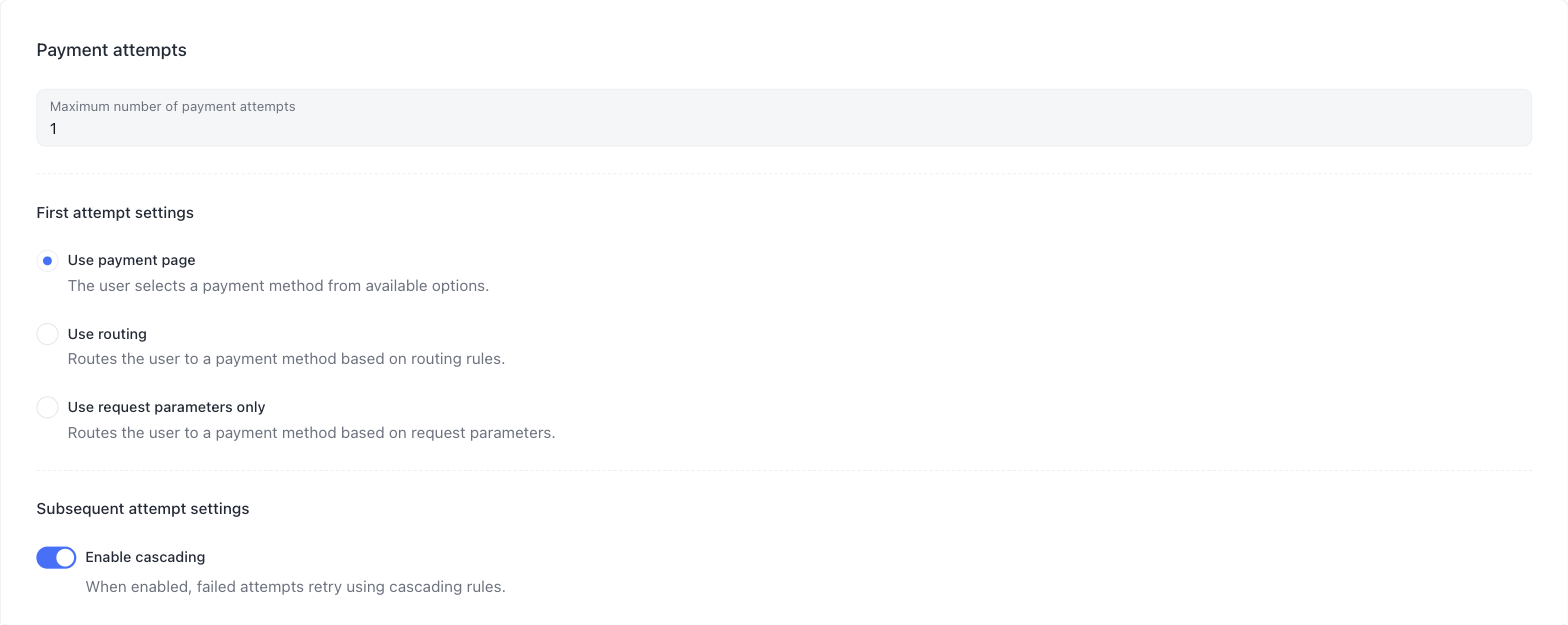
When the payment method is not uniquely determined from the request, the outcome depends on the First attempt settings of the shop (Merchant Account → Shops → shop → Settings → Payment attempts).
First attempt settings
| Option | How the payment method is selected |
|---|---|
| Use payment page | The payment page is shown; the payer selects a payment method from the available options. An option that covers several methods is resolved by routing rules after the selection (see Step 3) |
| Use routing | Routing rules select the method before the payment page is shown. If no rule matches, the outcome depends on Fallback to payment page |
| Use request parameters only | Only the request parameters are used to select the method; routing rules are not evaluated and the method selection step is never shown. If the request does not identify a single method, the order fails at creation |
Mode 1: Use payment page
The payment page is shown whenever more than one method matches the request and the order currency. The payer selects one of the options; the choice is resolved as described in Step 3.
Mode 2: Use routing
Routing rules are evaluated when the order is created:
- Rules are checked in the order they appear in the list (see Routing rule priority) — the first matching rule that resolves to a single payment method is applied, regardless of how many conditions each rule has.
- If such a rule is found, the first payment attempt is created with its method at order creation. The payment link opens the data entry form of that method directly, with no method selection step. The applied rule is recorded in the payment details.
- A rule that routes to several payment methods cannot select one of them at order creation: the platform skips it and checks the next rule in the list.
- If no rule matches (or none resolves to a single method), the outcome depends on the Fallback to payment page setting.
Fallback to payment page
This toggle appears under Use routing and controls what happens when routing does not find a payment method:
| Fallback to payment page | What happens when no rule matches |
|---|---|
| Enabled | The payer is redirected to the payment page with all matching methods, as in Use payment page mode; the choice is resolved as described in Step 3 |
| Disabled | Order creation fails with HTTP 412 and the message No payment settings were found, and fallback is disabled by shop configuration. The order is recorded with status code 1-03-11 and is not retried |
Routing rule priority
Routing rules are evaluated in list order. Use the Reorder function on the Routing tab to arrange the rules — place the most important rules at the top. This applies to routing rules only: cascading rules are ordered differently.
The Routing tab of the shop — the list order defines the priority:

Mode 3: Use request parameters only
The payment method is selected from the request parameters only; routing rules are not evaluated and the method selection step is never shown — the payer is taken directly to the data entry form of the selected method.
- If the request contains
paymentSettingsAlias, the platform first selects the exact method tied to the alias — as in every mode (see Aliases). - Otherwise, if the request uniquely identifies a method, it is used directly.
- If the request does not identify a single method, the order fails at creation.
- Data collection on the payment page does not apply in this mode: if the selected method requires fields that were not passed in the request, the payment fails with status code
1-07-01(Missing required parameters for the selected payment method).
Use this mode when your integration explicitly specifies the payment method in every request and passes all the data the method requires.
Step 3: Payment Page
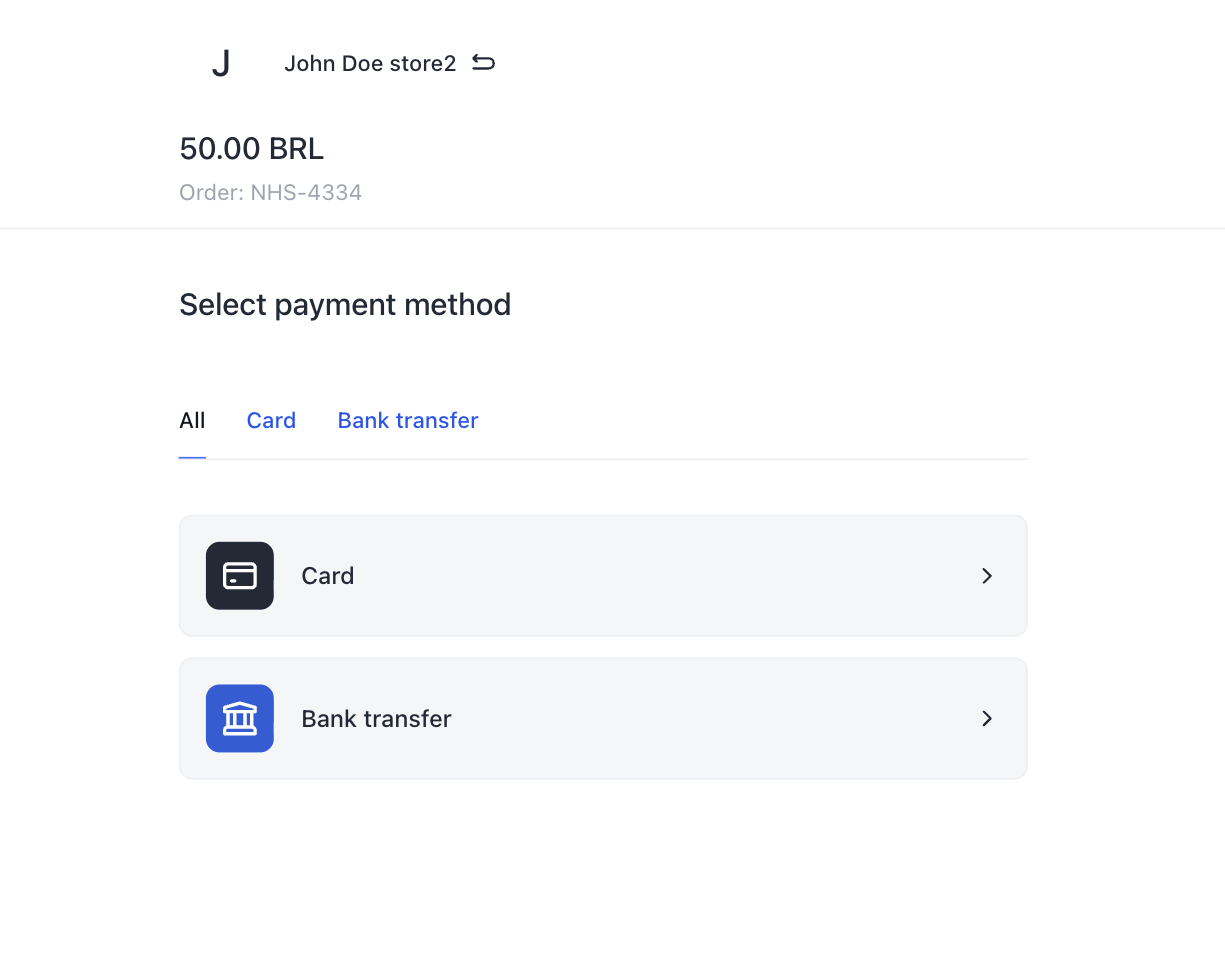
The payment page lists the available payment methods grouped by instrument type. How each method is presented is configured by the platform operator: the Edit display on the payment page settings (Show provider, Show acquire, Show bank transfer type) define which details appear in the option name. Methods whose details are hidden are merged into one generic option:
| Situation | What the payer sees |
|---|---|
| Several methods, each displayed with its own name | A separate button per method — the choice directly identifies the payment method |
| Several methods of one instrument type shown as one generic option | One generic button such as "Card"; the specific method is selected after data entry — by routing rules or, if no rule matches, the first matching method in the shop's list |
Different instrument types (card + bank_transfer + voucher) | A separate option per instrument type, with tabs to filter by type |
| The request narrows the selection to a single method | The selection step is skipped — the data entry form is displayed directly |
A payment page with two instrument types — the tabs above the list filter the options by type:
Payment page screens
The payment page splits the flow into up to three screens:
- Method selection — the list of payment options described above.
- Additional data entry — shown when the selected option covers several payment methods. Currently only card options require it: the payer enters the card number — the BIN or the card brand may be needed by routing conditions — and presses Next. Options of other types skip this screen — the resolution runs immediately after the selection (see Resolving the payer's choice).
- Data entry form of the selected method — the fields specific to the resolved payment method. When the method can still be changed, the values entered on the previous screen are shown in a block with a Change button, and Change payment method returns the payer to the method selection screen.
Screens that are not needed are skipped: an option tied to a single method with no missing routing data opens its data entry form directly.
Resolving the payer's choice
Regardless of how the options are displayed, the payer's choice is resolved the same way:
- An option that corresponds to a single payment method is final: that method is used. Routing rules are not involved and do not override the payer's explicit choice.
- An option that covers several methods is resolved by routing rules: the platform evaluates them against everything it knows at that point, and the first matching rule selects the method. For a generic card option, the payer first enters the card number — the BIN or the card brand may be needed by the conditions; options of other types are resolved immediately after the selection.
- If no rule matches, the payment is processed with the first method in the shop's list that matches the selected option.
Step 4: Antifraud
After the payer submits payment data and before the transaction is sent to the provider, the platform evaluates all applicable antifraud rules. If any rule triggers a blocking action, the transaction is declined without reaching the provider.
The antifraud check runs for every payment when it is enabled for the company; with no rules configured, every transaction is approved and the payment proceeds to the provider.
Step 5: Retries and cascading
What happens after a declined payment attempt is controlled by two settings in Payment attempts:
- Maximum number of payment attempts — the total number of payment attempts allowed for one order (the first attempt included).
- Enable cascading (under Subsequent attempt settings) — when enabled, failed attempts are retried automatically using cascading rules.
With the limit set to 1, the order fails immediately after the first declined attempt — with or without cascading.
Automatic retries: cascading
- A payment attempt fails.
- If attempts remain, the platform checks whether the status code of the failed attempt allows a retry (the
Retry allowedcolumn in Status Codes); if it does not, the order fails with1-07-26. - The platform selects a cascading rule that matches the failed payment and points to a payment method that has not been tried for this order. A rule condition can also match the status code of the failed attempt. Among the matching rules, the one with the largest number of conditions takes priority; rules with an equal number of conditions are checked in list order, top to bottom.
- A new payment attempt is created automatically with the method of the selected rule. What the payer sees depends on the fallback method. When it requires the same data as the failed one, the new attempt is processed immediately and the payer only sees the processing screen. When it requires different data, the payer is shown the data entry form of the new method together with a notice that the previous attempt was declined; if data collection on the payment page is disabled for the shop, the order fails with
1-07-27instead. For this reason, configure cascading between methods that require the same data, so the retry stays invisible to the payer. - This repeats until the payment succeeds, the attempts limit is reached, or no matching rule points to a method that has not been tried.
All attempts are recorded in the order's payments array, and the applied cascading rule is recorded in the payment details.
Cascading is also available for payouts — see Payout Cascading.

Manual retries: Try Again
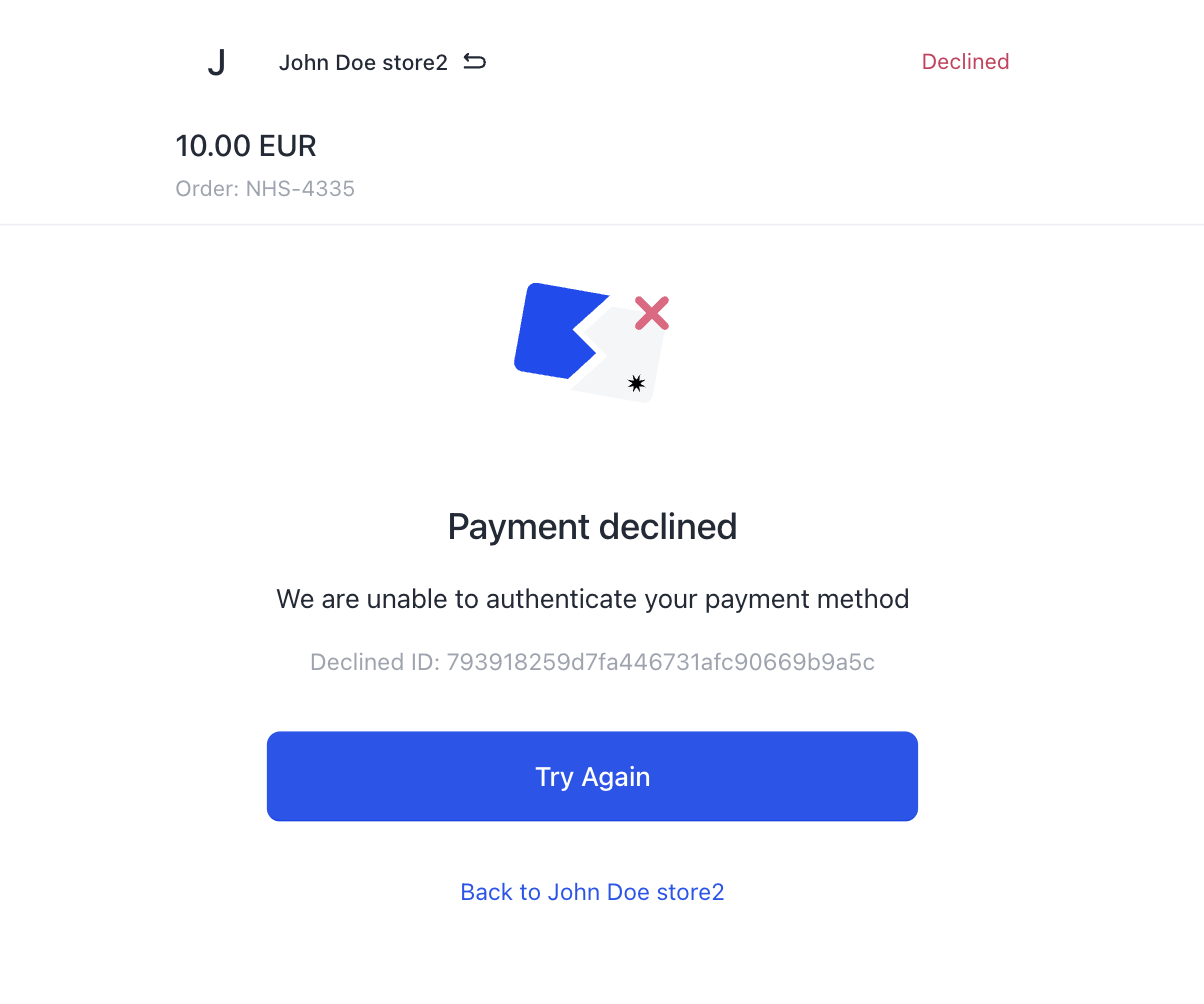
If cascading is disabled and the attempts limit is greater than 1, after a decline the payer sees a Try Again button. The retry repeats only the data entry for the same payment method — the method selection and routing are not re-run, in any first attempt mode. The order fails when the limit is exhausted.
A retry is offered only when the status code of the failed attempt allows it — see the Retry allowed column in the Status Codes reference. If the code does not allow a retry, the order fails immediately with 1-07-26, even when attempts remain. Custom field values entered by the payer are reused for the retry where possible (sensitive data such as card details is requested again).
Settings summary
The Payment attempts settings fall into two independent groups: the first attempt settings (the mode radio button plus, for Use routing, the Fallback to payment page toggle) control how the first payment method is selected; Maximum number of payment attempts and Enable cascading control what happens after a failed attempt. Any combination of the two groups is allowed:
| First attempt settings | Attempts = 1 | Attempts > 1, cascading disabled | Attempts > 1, cascading enabled |
|---|---|---|---|
| Use payment page | The payer selects the method; the order fails after the first declined attempt | The payer selects the method; after a decline, Try Again retries the same method | The payer selects the method; failed attempts are retried automatically by cascading rules |
| Use routing + fallback enabled | Routing selects the method; if no rule matches, the payer selects it on the payment page. The order fails after the first declined attempt | Routing selects the method; if no rule matches, the payer selects it on the payment page. After a decline, Try Again retries the same method | Routing selects the method; if no rule matches, the payer selects it on the payment page. Failed attempts are retried automatically by cascading rules |
| Use routing + fallback disabled | Routing selects the method; if no rule matches, the order fails at creation (1-03-11). Otherwise, the order fails after the first declined attempt | Routing selects the method; if no rule matches, the order fails at creation (1-03-11). After a decline, Try Again retries the same method | Routing selects the method; if no rule matches, the order fails at creation (1-03-11). Failed attempts are retried automatically by cascading rules |
| Use request parameters only | Request parameters select the method; if they do not identify a single method, the order fails at creation. Otherwise, the order fails after the first declined attempt | Request parameters select the method; if they do not identify a single method, the order fails at creation. After a decline, Try Again retries the same method | Request parameters select the method; if they do not identify a single method, the order fails at creation. Failed attempts are retried automatically by cascading rules |
The retry behavior is the same in every mode, with two cross-cutting rules:
- A manual Try Again always retries the payment method of the failed attempt — the method selection (payer's choice or routing) is not repeated.
- With cascading enabled there is no manual retry: if no cascading rule produces an eligible fallback method, the order fails immediately (
1-03-03) even when attempts remain; if the fallback method requires different data while data collection on the payment page is disabled, the order fails with1-07-27. Setting the attempts limit to 1 with cascading enabled also means cascading never runs — the platform warns about this combination in the cascading rule form.
The Fallback to payment page toggle is shown only under Use routing; outside that mode it has no effect.
Why an order fails
Quick reference for the failure outcomes described above:
| When | What you receive | Order status code | Cause | What to do |
|---|---|---|---|---|
| At order creation, any mode | HTTP 412, There are no active payment settings that matches requested parameters | 1-03-01 | No configured payment method matches the order currency and paymentSettings | Fix the request parameters, or connect a suitable payment method |
| At order creation, Use routing with fallback disabled | HTTP 412, No payment settings were found, and fallback is disabled by shop configuration | 1-03-11 | No routing rule resolved a single payment method | Adjust the routing rules, or enable Fallback to payment page |
| After the last allowed attempt is declined | Order status failed | 2-01-01 | The provider declined the payment and no attempts remain | Inspect the attempts in the order details |
| After a declined attempt, cascading enabled, attempts remaining | Order status failed | 1-03-03 | Cascading produced no eligible fallback: no rule matched, or every matching rule points to an already-tried method | Check the cascading rules and the methods they point to |
| After a declined attempt, cascading enabled, the fallback method requires different data | Order status failed | 1-07-27 | The fallback method selected by cascading requires additional data entry, but data collection on the payment page is disabled for the shop | Enable data collection on the payment page, or configure cascading between methods that require the same data |
| After a declined attempt, any retry mode, attempts remaining | Order status failed | 1-07-26 | The status code of the failed attempt does not allow a retry (see the Retry allowed column in Status Codes) | Inspect the status code of the failed attempt in the order details |
| At order creation, Use request parameters only, method identified | Order status failed | 1-07-01 | The selected payment method requires fields that were not passed in the request; data collection on the payment page does not apply in this mode | Pass all the fields the method requires, or switch to another first attempt mode |
See Status Codes for the full list.
Aliases
Aliases are used when the same payment method has several configurations — for example, different credentials for different regions — and traffic needs to be directed to the correct one.
When to use
If the Retrieve Payment Methods response includes a paymentSettingsAlias field for a method, pass it when creating an order. Without the alias, the selection among the matching configurations follows the regular flow — routing rules or the payer's choice on the payment page — and the payment may be directed to any of them.
How to use
"paymentSettings": {
  "paymentSettingsAlias": "providerA-eu"
}
This selects the exact payment configuration tied to the alias: the payment is created directly with that method, routing is not involved, and the selection step on the payment page is skipped. The alias value itself is assigned when the payment method is connected to your shop — contact your platform operator to set or change it.
Alias errors
Order creation fails with one of the following status codes when the alias cannot be resolved:
| statusCode | Meaning |
|---|---|
1-03-04 | No payment settings were found for the provided alias |
1-03-05 | Several payment settings were found for the provided alias |
1-03-06 | The provided order parameters do not match the payment settings alias |
For setup details, see Alias Documentation.
Examples
Setup for the examples: the shop has two card payment methods for EUR — ProviderA and ProviderB. A routing rule is configured: Payment amount >= 1 AND Currency = EUR → ProviderB. Maximum number of payment attempts is 1.
Example 1: Use routing
Step 1. The merchant sends a request without paymentSettings:
{
  "shopId": 115,
  "order": {
    "orderNumber": "order-001",
    "cost": { "amount": "10.00", "currency": "EUR" }
  }
}
Two card methods match the currency EUR. The payment method is not uniquely determined → the first attempt settings apply.
Step 2. The mode is Use routing → rules are evaluated at order creation. The rule Payment amount >= 1 AND Currency = EUR matches and points to ProviderB → the payment is created with ProviderB. The response contains a paymentLink.
Step 3. The payer opens the link and is taken directly to the ProviderB data entry form — there is no method selection step. The payer enters the card number, expiration date, and CVV.
Step 4. Antifraud rules are evaluated. No rules triggered → the payment is sent to ProviderB. ProviderB approves the transaction → order completed.
Example 2: Use payment page
Same setup and the same request, but the mode is Use payment page.
Step 2. The payment page is shown with both card options — ProviderA and ProviderB. The routing rule does not pre-select a method.
Step 3. The payer selects one of the options and enters the card data. If the selected option corresponds to a single configured method, exactly that method is used — even though the routing rule points to ProviderB.
Step 4. Antifraud rules are evaluated. No rules triggered → the payment is sent to the provider selected by the payer. The provider approves the transaction → order completed.
Example 3: Cascading after a decline
Same setup, but Maximum number of payment attempts is 3, Enable cascading is on, and a cascading rule is configured: Payment amount >= 1 AND Currency = EUR → ProviderA.
Steps 1–4. Same as in Example 1 up to the provider's response: the routing rule selects ProviderB, the payer enters the card data, antifraud passes, and the payment is sent to ProviderB.
Step 5. ProviderB declines the transaction. Attempts remain, so the platform checks the cascading rules: the rule matches and points to ProviderA, which has not been tried yet → a second payment attempt is created automatically with ProviderA. Both methods require the same card data, so the payer only sees the processing screen. ProviderA approves the transaction → order completed. The order's payments array contains both attempts, and the second one records the applied cascading rule.